

How to Add an RSS Feed to Discord with MEE6 (Step by Step)
MEE6 is one of the most popular bots on Discord, so if it’s already in your server, you don’t need another bot to get news, deals or blog posts posted automatically. Its RSS Feeds module watches a feed and drops every new post into the channel you pick.
This guide walks through it click by click, with screenshots from the MEE6 dashboard. We use our own free game deal feeds as the example, but any RSS link works the same way.
The Scroll in Brief
- Where: MEE6 dashboard → Social Alerts → RSS Feeds.
- What you need: MEE6 in your server, the Manage Server permission, and MEE6 Premium (RSS Feeds is a Premium module).
- Time: about two minutes per feed.
- No Premium? MonitoRSS and Readybot do the same job for free (see the last section).
Before You Start
- MEE6 has to be in your server. If it isn’t, add it from mee6.xyz and sign in with Discord.
- You need Manage Server on that server, or MEE6 won’t let you open its dashboard.
- RSS Feeds is part of MEE6 Premium. Check MEE6’s Premium page for the current price before you buy. If you only want MEE6 for RSS, a free RSS bot is the cheaper route.
- Have your feed link ready. Copy it from the list further down, or from any site’s RSS page.
Step 1: Open RSS Feeds in the MEE6 Dashboard
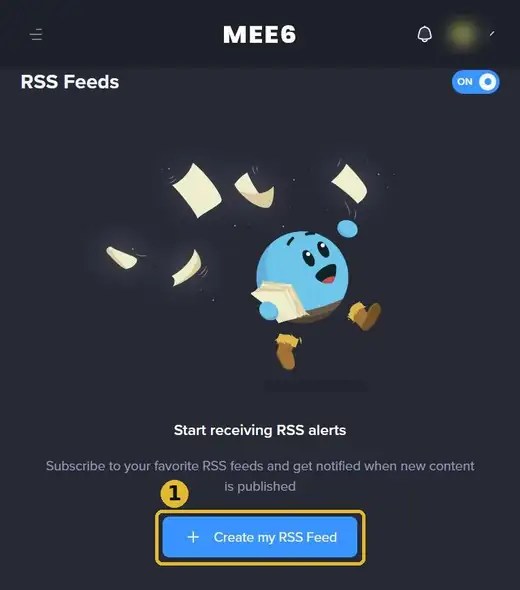
Open the MEE6 dashboard, pick your server, then go to Social Alerts → RSS Feeds. Click Create my RSS Feed.
Step 2: Fill In the New Feed Form
A form opens with two fields that matter: RSS Link (the feed address) and Channel (where new posts will appear).

Step 3: Paste the Feed Link and Pick a Channel
Paste your feed link into RSS Link, choose the channel from the dropdown, then click Save. Use a dedicated channel such as #free-games or #daily-deals so the posts don’t bury your chat.

Step 4: Check That the Feed Is Active
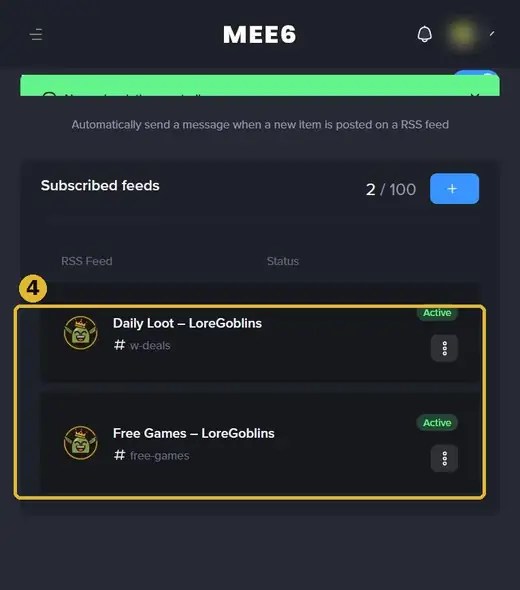
Your feed now shows under Subscribed feeds, with a counter of how many you’re using. From now on, every new post in that feed appears in your channel on its own. Repeat Steps 1 to 3 for each extra feed, one channel per feed.
Feeds Worth Adding for Gamers
These are ours, free for anyone to use in their own server. Each one is its own feed, so you can send them to different channels.
| What you get | Feed link |
|---|---|
| Free games to claim and keep (Steam, Epic) | https://loregoblins.com/tag/free-games/feed/ |
| One post a day with the best game deals | https://loregoblins.com/category/deals/daily-loot/feed/ |
| Every new Humble Bundle | https://loregoblins.com/tag/humble-bundle/feed/ |
| All game deal posts | https://loregoblins.com/category/deals/feed/ |
Want copy buttons and more feeds (co-op picks, lore, gift guides)? Use the feed picker on our Add LoreGoblins to Your Discord page.
If Nothing Shows Up
- Be patient with the first post. RSS bots only post items that are new after you add the feed, so the channel stays quiet until the site publishes something.
- Check MEE6’s channel permissions. MEE6 needs View Channel, Send Messages and Embed Links in that channel.
- Check the link. Open it in your browser. A working feed shows a page of code (XML), not a normal web page or an error.
- Asked to upgrade? RSS Feeds is a MEE6 Premium module, so a server on the free plan can’t turn it on. Use one of the free bots below instead.
Free Alternatives to MEE6 for RSS
If you don’t want to pay for Premium just for feeds, two bots built for RSS do it for free:
- MonitoRSS: free for up to 3 feeds, checks every 20 minutes, and lets you customize the message and filter by keyword.
- Readybot: free for up to 20 feeds, checks every 10 minutes, with simpler message options.
Step-by-step guides: MonitoRSS and Readybot.
Keep digging: free game alerts in your Discord, daily game deals in your Discord and every LoreGoblins feed.
Sources
- MEE6: dashboard screenshots taken September 2026 (Social Alerts → RSS Feeds).
- MonitoRSS and Readybot: plan limits from their sites, September 2026.


